Board Export+ Power-Up Guide
Export Trello boards, lists, and cards into client-ready files — then schedule delivery when you need it.
Formats: CSV · XLSX · JSON · PDF · PNG · DOCX · ZIP
Video guide
Watch the full walkthrough first, then use the screenshots below for each screen.
Quick start
- Open Board Export+ from a board, list, or card.
- On Start, set filename, lists, fields, and filters.
- Pick a format in the footer.
- Click Preview, then Export.
Most exports finish quickly and download right away. Larger exports are queued in the background — check History if the download does not start within a few seconds.
Start — set up the export
Name the file, choose lists and fields, add filters, then export.
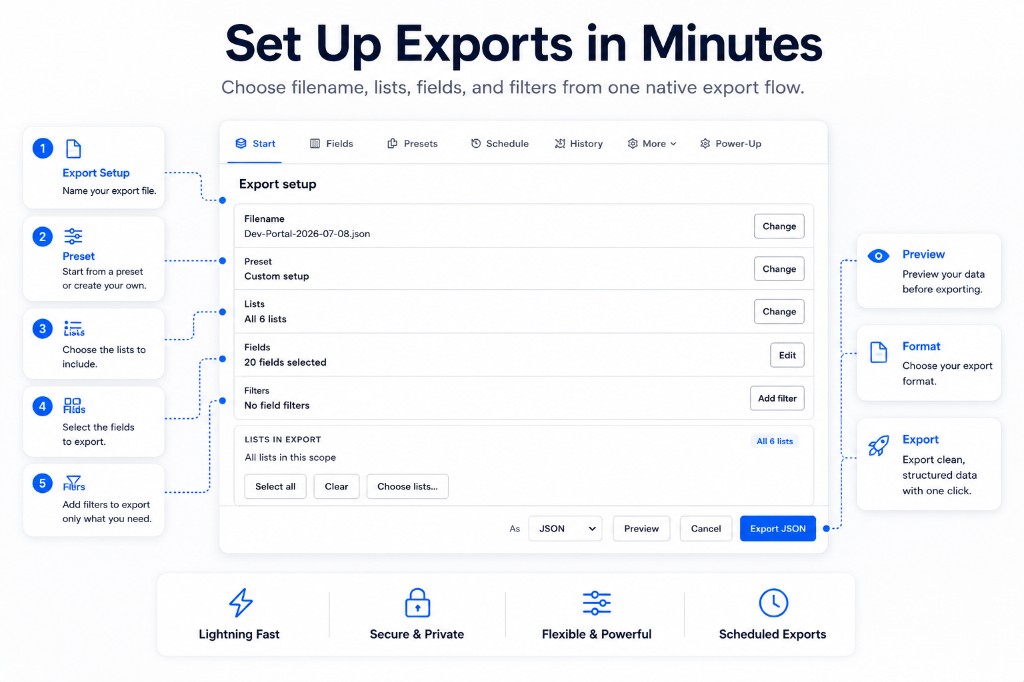
| Step | What to do |
|---|---|
| Filename | Name the export so you can find it later. |
| Preset | Start from a saved layout, or keep a custom setup. |
| Lists | Include only the lists you need. |
| Fields | Pick the data columns for this run. |
| Filters | Narrow the export to matching cards. |
| Format | Choose CSV, XLSX, JSON, PDF, PNG, DOCX, or ZIP. |
| Preview / Export | Check the output, then download (or queue for History). |
The footer always shows readiness, card/list counts, format, and active filters.
If you enable comments or activity fields, Board Export+ loads that data from Trello when the export runs (not during the initial preview).
Fields — choose columns
Pick exactly what appears in the file, reorder columns, and save the layout.
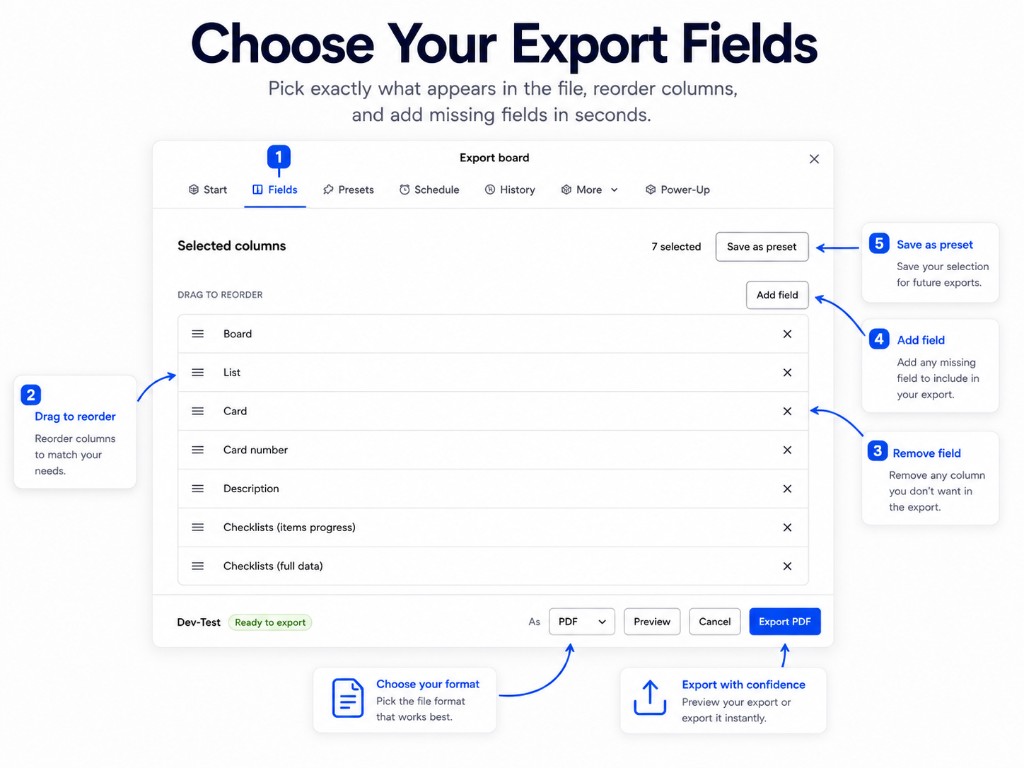
| Control | What it does |
|---|---|
| Drag handles | Reorder columns. |
| X | Remove a column. |
| Add field | Include another field. |
| Save as preset | Reuse this field set later. |
Use fewer fields for client reports. Use more fields for backups and audits.
Presets — reuse layouts
Apply a starter layout, or save your current setup for one-click reuse.
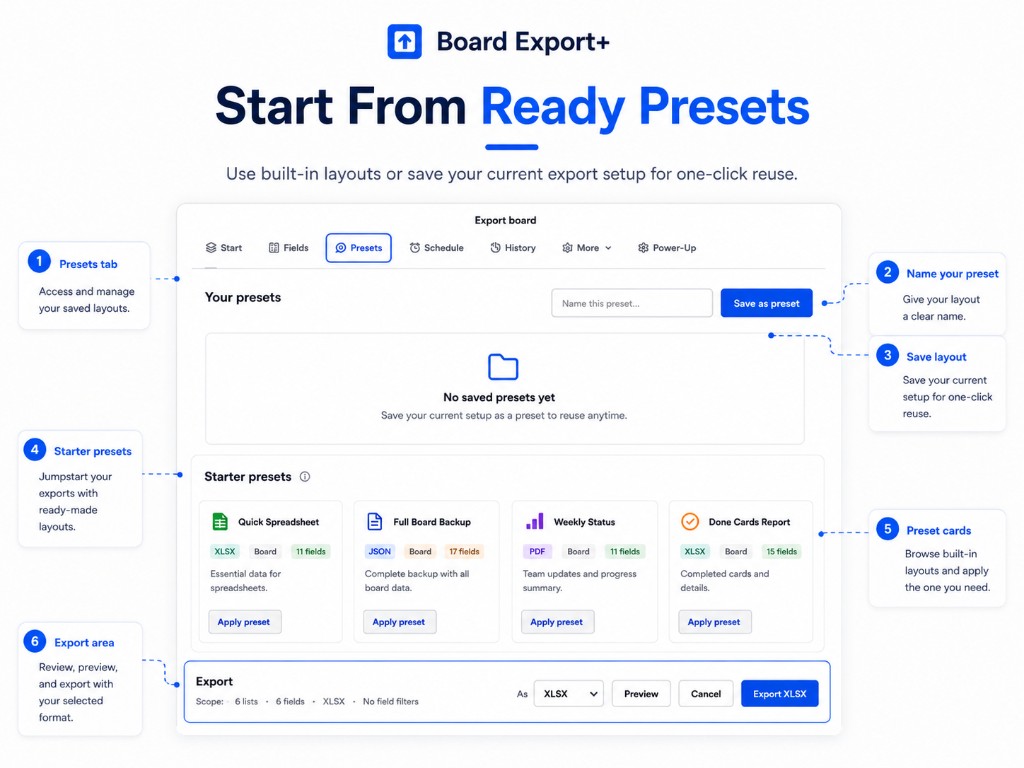
| Area | What it does |
|---|---|
| Your presets | Name and save the current setup. |
| Starter presets | Ready-made layouts (spreadsheet, backup, weekly status, and more). |
| Apply preset | Load that layout into Start and Fields. |
After applying a preset, review Start and Fields — especially if you change format.
Your plan limits how many saved presets you can keep (shown as 0/24 style counters).
Schedule — automate delivery
Set cadence, local time, retention, and delivery targets.
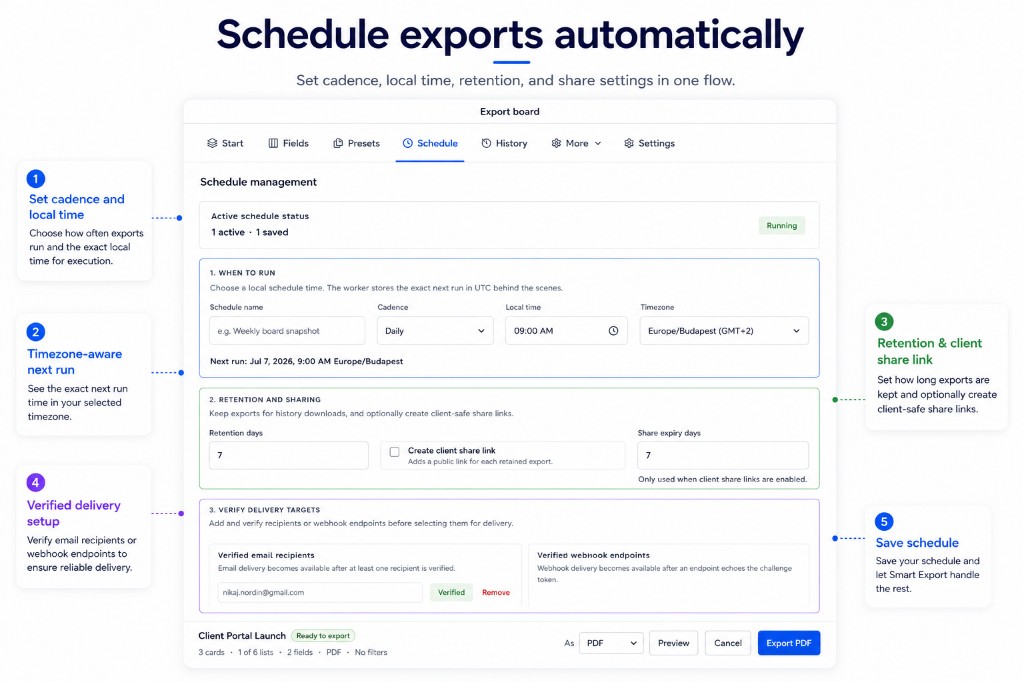
| Step | What to do |
|---|---|
| When to run | Name the schedule, pick daily/weekly, set local time. |
| Next run | Confirm the timezone-aware next run time. |
| Retention & sharing | Keep downloads for N days; optionally create a client share link. |
| Verify delivery | Verify email recipients and webhook endpoints before use. |
| Save | Activate the schedule. |
Email: add recipient → open verification email → paste token → select verified recipient → save.
Webhook: paste URL → complete challenge verification → select endpoint → enable webhook delivery → save.
Schedules, email, and webhooks require Pro (or an active trial).
History — past exports
Track completed runs, download files, and reuse past settings. Queued interactive exports also appear here while they run.
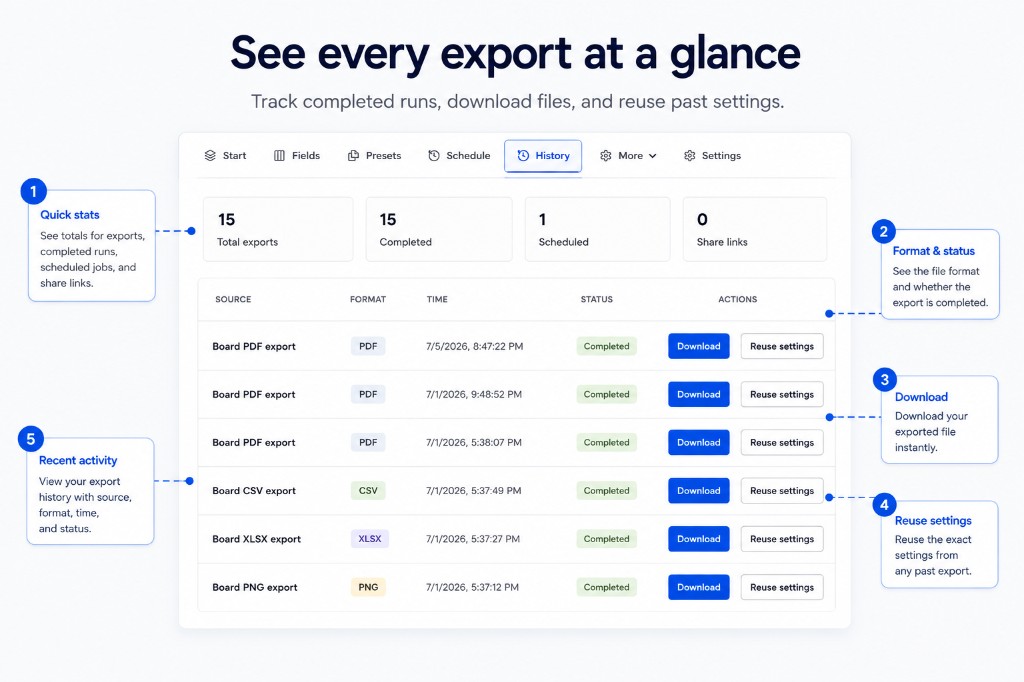
| Area | What it does |
|---|---|
| Quick stats | Totals for exports, completed runs, scheduled jobs, and share links. |
| Format & status | See file type and job status at a glance. |
| Download | Get the file while it is still retained. |
| Reuse settings | Reload that export’s setup into the modal. |
Status values include Queued and Processing for interactive exports still running. If an export is queued and the download does not start within about 30 seconds, Board Export+ shows a message to check History when it is ready.
For scheduled jobs, status can also show delivery progress, such as Delivery queued, Delivering, Delivered, or Delivery failed.
Advanced — branding & defaults
Set workspace branding and fallback defaults used when Trello does not pass context.
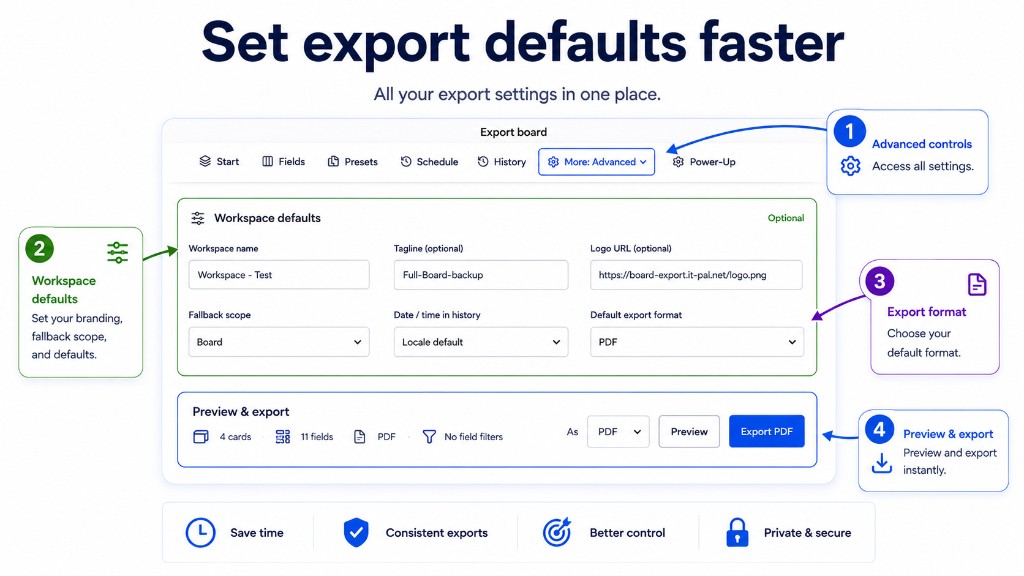
| Setting | What it does |
|---|---|
| Company / workspace name | Brand name on PDF, PNG, and DOCX reports. |
| Tagline | Optional subtitle on reports. |
| Logo URL | Optional logo on reports. |
| Default format | Preferred format for new exports. |
| Default scope | Board / list / card when Trello does not pass one. |
These branding values are stored locally for the modal. Power-Up preferences live in Settings.
Settings & billing
Manage connection, preferences, and your plan from Power-Up settings.
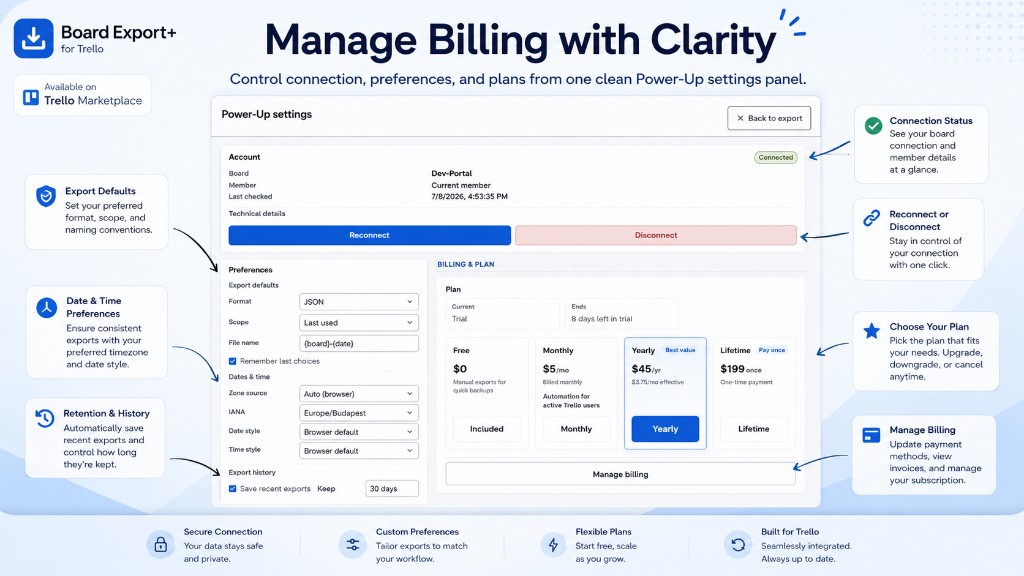
Connection & preferences
| Area | What it does |
|---|---|
| Account | See connection status; reconnect or disconnect. |
| Export defaults | Preferred format, scope, and filename pattern. |
| Dates & time | Timezone and date/time display style. |
| Export history | Save recent exports and set retention days. |
Plans
| Plan | Price | Includes |
|---|---|---|
| Free | $0 | Manual JSON and CSV exports |
| Monthly | $9/mo | Workspace Pro, 3 active boards included |
| Yearly | $89/yr | Same as Pro, best recurring value |
| Early Bird Lifetime Phase 1 | $99 once | First 25 workspaces, 3 active boards included |
| Early Bird Lifetime Phase 2 | $149 once | Next 50 workspaces, 3 active boards included |
| Early Bird Lifetime Phase 3 | $199 once | Next 100 workspaces, 3 active boards included |
| Extra active board | $3/board/mo | Add-on for Workspace Pro |
| Lifetime | $199 once | Same as Pro — pay once |
Pro also raises limits for saved presets, history items, and retention.
- Start with a 14-day Pro trial on the member plan (legacy default).
- Use Manage billing for payment methods, invoices, and subscription changes.
When your workspace administrator has enabled workspace billing, Pro is purchased for the Trello workspace that owns the current board. The settings screen shows Billing scope: Workspace and only workspace admins or billing managers can upgrade or open the billing portal. Access still applies to all members on licensed boards in that workspace once payment is confirmed.
Formats at a glance
| Format | Best for |
|---|---|
| CSV / XLSX | Spreadsheets and analysis |
| JSON | Backups, migrations, integrations |
| PDF / PNG / DOCX | Client-ready report layouts |
| ZIP | Attachments plus a manifest |
Not every option applies to every format. Branding matters most for reports. Field order matters most for tabular files.
Troubleshooting
Export is blocked
Check the Start readiness message. Usually you need cards/lists selected, or tabular fields for CSV/XLSX/JSON.
Export queued but no download
Open History and wait for status to change from Queued or Processing to completed, then download from there.
Schedule did not run
Confirm the schedule is active, the timezone/time are correct, and at least one verified delivery method is selected.
Email verification missing
Check spelling and spam, then resend verification.
Webhook verified but nothing arrives
Confirm webhook delivery is enabled on the schedule and the verified endpoint is selected.
Format requires Pro
PDF, PNG, XLSX, DOCX, ZIP, schedules, email, and webhooks need Pro or an active trial. Upgrade from Settings.
Privacy
Board Export+ may store access tokens, export settings, schedules, templates, job history, and retained files. Treat downloads and share links as sensitive when they include client or member data.